Congratulations! You've taken the plunge and purchased yourself a brand new Nintendo Switch.
Nintendo's new hardware is easy to get your head around, but it still possesses some hidden secrets which can enhance your experience. As with any console, we expect we'll be continually learning about the Switch's quirks and new features as time rolls on.
Below represents the most helpful tips for new users, but we'll be expanding this list as time goes on.

Play online games via your mobile
Taking a console online via the personal hotspot of a smartphone isn't something we'd usually recommend. But as you won't always be using your Switch at home, it's an option that needs considering.
Against all odds, it seems that playing online games via a 4G (LTE) connection could be viable. Engadget tested Splatoon 2 this way and experienced no noticeable lag. Even better, a 20-minute splatting session only used 45.6 megabytes of data.
But just because one person playing one game has tried this method successfully, it doesn't mean it will work in all scenarios. Games other than Splatoon 2 may be more data heavy, and different network conditions could severely impact the experience.
What to Read Next
Still, it's worth a shot if you think your 4G connection is up to it and you have a generous data plan with plenty of wiggle room.
Install on internal memory for faster loading
The Switch is capable of running games from three locations: its 32GB of internal memory, an external SD card, or the cartridge on which a game arrives.
The tech wizards over at Eurogamer have discovered that the internal memory offers shorter loading times for games than the other two options. Tests using Breath of the Wild showed that loading the Temple of Time area from internal memory took 30.7 seconds, from a cartridge it took 35.7 seconds, and from a 16GB SD card it took 34.1 seconds.
Sadly, the Switch's internal memory can't be expanded and offers only 25.9GB to users for games. Use it wisely.
Turn the Switch off completely
Pressing the power button at the top of the Switch doesn't actually turn it off – instead it sends it into a power-efficient sleep mode.
Sometimes you're going to want to turn off the console completely, or restart it. In order to do so you'll need to hold down the power button for five seconds until a console management menu appears on the screen. Using the Joy-con or touchscreen select "Power Options" and then "Power off" or "Restart".

View the battery's remaining charge in an instant
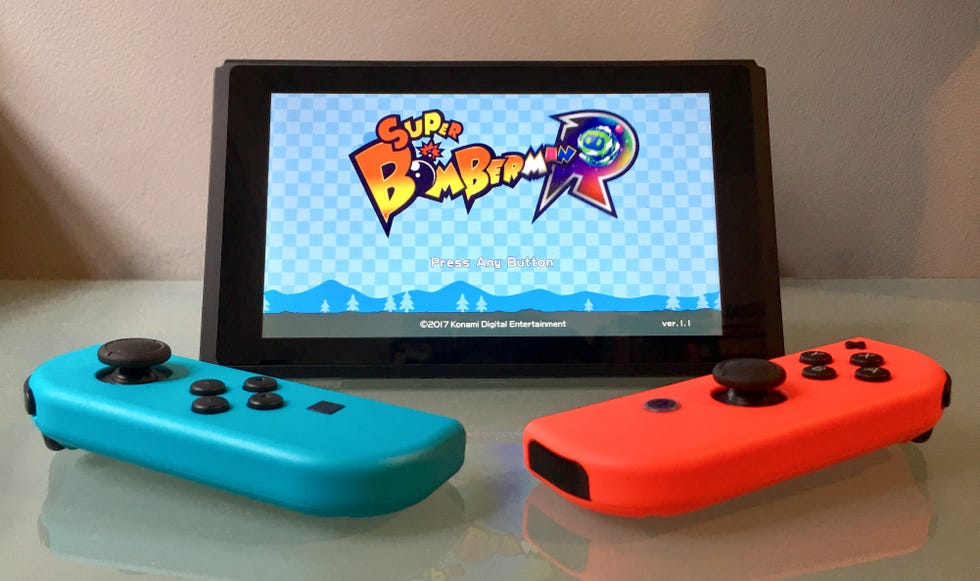
A meter in the top-right corner of the Switch's display shows roughly how much battery the console has left – but the difference between 5% and 10% can make all the difference.
Thankfully there's an easy way to check exactly how much battery remains: just tap the battery indicator and the console will display the number in percent.
Plug in a USB keyboard for faster typing
Whilst the uses for this function are currently limited, it could become more useful as the Switch's native software expands. Just plug a USB keyboard into the dock when the Switch is connected and it should allow text input.
At the moment the only significant use for this is entering login details and commenting on photos, but should the Switch choose to include a fully functional web browser in the future, keyboard compatibility would prove super handy.


Keep it safe, keep it charged, keep it shiny
The Switch is the only current-gen console where buying accessories is almost non-negotiable, so much so that when considering buying one, we'd factor them into the console price.
Luckily for you, we've already listed the most useful accessories for any Nintendo Switch user. If you're planning on regularly using the console in handheld mode – or for multiplayer split-screen when out and about – then the case and stand will make your life a lot easier.
Things to avoid
Custom Skins – the coating of the Switch is easily damaged by adhesives and isn't designed to accommodate custom vinyl skins like some other consoles. Applying then removing a skin can result in very unpleasant-looking mottling which is irreversible. In other words, don't do it.
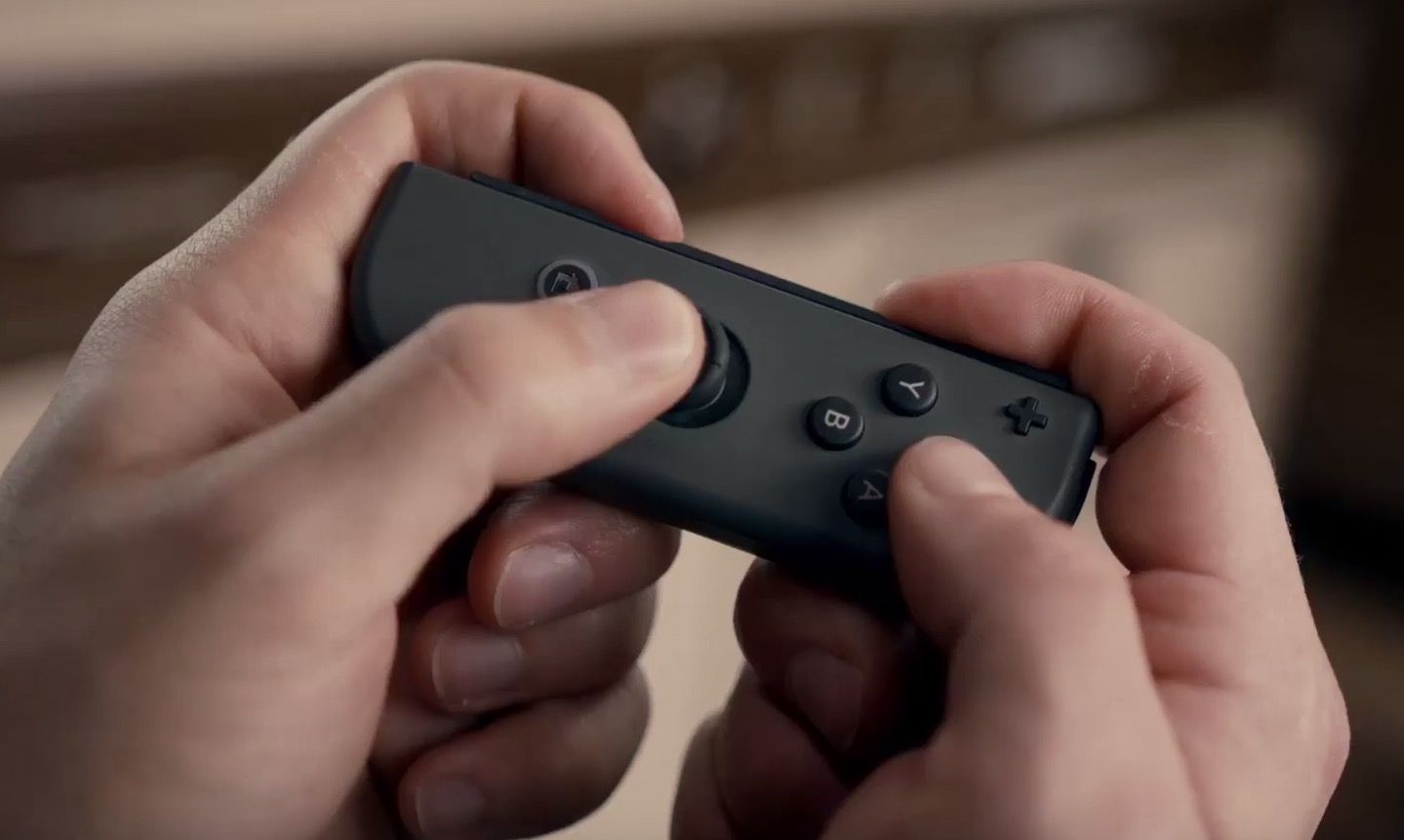
Slotting Joy-Con attachments back to front – this sounds impossible but it's actually very easily done and results in the grip becoming stuck in place. When slotting the grip into Joy-Con, look carefully at the faces where both items meet.
Yanking the Switch out of the dock – it's tempting to lift the tablet from its resting place with speed, but this can result in scratching to the plastic screen. Ensure that you hold the Switch at either end and pull upwards slowly. To further ensure the screen's safety, buy a screen protector.
Want up-to-the-minute entertainment news and features? Just hit 'Like' on our Digital Spy Facebook page and 'Follow' on our @digitalspy Twitter account and you're all set.


