Don't you just hate all those techie know-it-alls who whinge about how broken, terrible and traumatic email has become? (First world problems…)
But we still have a considerable soft spot for good old Gmail – you just need to know how to get the most out of it. These handy tips and tricks are a good starting point.
1. Don't forget those keyboard shortcuts


They say "there's no shortcut to success", but they're wrong when it comes to Gmail. Activate keyboard shortcuts by clicking the gear-shaped settings icon and entering Settings, then scroll down to Keyboard Shortcuts under the General tab and set them to "on". Hit "save changes".
Now hit C to compose a message, / to start a mail search, R to reply, A to reply to all, F to forward, Q to move to the chat box, and plenty more that you'll find in the Gmail support page above.
2. Change to preview layout
What to Read Next
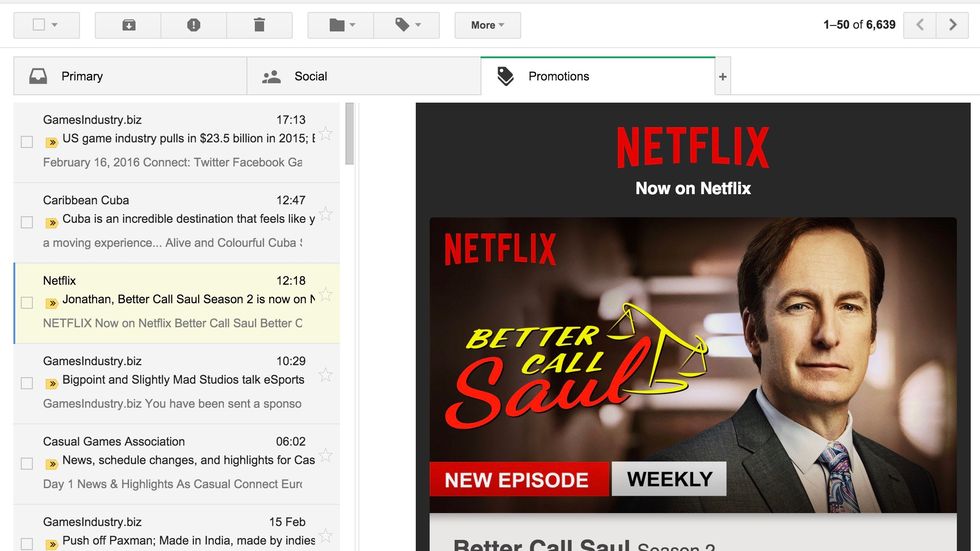

One of the first things you should do in desktop Gmail is switch to a split-pane preview layout, which will transform the whole Gmail shebang into a much more modern, screen-space-efficient, and just plain pleasant experience. Unless you hate the preview pane, in which case go straight to tip 3.
If you don't have a "Toggle split pane mode" button at the top right of the page, go back into Settings through the cog button, click "labs" along the top, then enable "preview pane". Save the changes and return to your inbox. You should now have a toggling button at the top right. We recommend a vertical split for most people, as this will provide you with a list of messages to scroll through on the left, and a preview of that message on the right.
3. Oh no! Where's the "Unsend" button?


We've all been there. That cold sweat-inducing moment when you realise you've just sent a sensitive or vaguely offensive email to the wrong person - F**k! But in Gmail, you can claw that errant message back.
Go back into the General tab under Settings again, and tick the 'Enable Undo Send' box. Depending on your level of clumsiness, you can alter the grace period for cancelling the sending of your emails to between five and 30 seconds. Now you'll see an "Undo" option at the top of the main Gmail page whenever you send an email. Why this isn't on as standard is beyond us.
4. Juggle multiple accounts


Do you lead a duplicitous, deceitful double life? We're not judging. All we're saying is that you can be a cad far more efficiently if you use Gmail in conjunction with Chrome. This way you can sign in with two or more Gmail addresses simultaneously through the top-right account button, and each account will occupy its own distinct tab on Chrome. You utter rascal.
5. Log out remotely


Forgot to logout of your Gmail account on a public computer? Suspect that someone else is accessing your account on another device? Don't fret – just log them out remotely.
Check out the small writing at the very bottom of the Gmail web page, where it says "Last account activity." Click on the Details link and you'll receive a rundown of any recent activity. Hit the "Sign out of all other web sessions" button to bring it all down to the here and now.
6. Be a totally cunning spam detective


Ever wonder how the spam fiends obtain your email address? It's possible to set a marker, if you're sneakily methodical when it comes to giving out your Gmail address. It all comes down to the fact that Gmail doesn't actually care how many dots you put in your email address.
You might be using anonymous.chap@gmail.com as your handle, but an email to an.ony.mouschap@gmail.com would get through to you too. So, when filling out an online form or signing up to a service, use different variations of dots, and you'll know exactly who sold your data to those spam-heads.
7. Look on the plus side with filters


You could also start including plus sign addendums to your gmail handle when signing up to different services in order to make them easier to sort. By that, we mean adding '+whatever' to the back end of your name. So: anonymous.chap+whatever@gmail.com.
The '+whatever' expression won't disrupt the progress of any emails using it, but it'll still pick it up in the Gmail filters, making it easy to sift out whole bunches of emails.
8. Save all your emails


Google saves all of your Gmail messages in the cloud, of course, and it's pretty good at not losing stuff. But if your email history is of critical importance to you, you might want to save them all locally.
Fortunately, Google has made that incredibly easy to do. Just follow this link and you can download all of your Google-stored data – or you can just narrow it down to your Gmail. It's also possible to hone in further, and only save specific Gmail folders (thank the email gods).
9. Dragging and dropping: the best way to attach images


Sure, you could use the little paperclip icon at the bottom of the message to attach your photos. But it's better to drag and drop them from your desktop.
For one thing, it's much more fun, but more importantly the pictures will appear at the bottom of your message for preview purposes, rather than merely the file name.
10. Got massive files to attach? Use Google Drive


While we're on the subject of attachments, do you see that little triangular icon to the right of the paperclip? Clicking that allows you to speedily attach any Google Drive-stored files to your emails.
This is more than just a handy shortcut, but is an essential tool for power users. You see, any files attached through Google Drive won't count against the usual 25GB attachment size limit. It's a great way to email massive files, in other words.
11. Search out and delete huge messages


Google gives everyone 15GB of free storage across its services, which includes the entire allotment for your Gmail messages. This sounds like quite a lot, but it can swiftly fill up.
One good way to work some space is to delete particularly large emails. To locate them, type 'size:20m' in the search field. '20m' means messages that take up 20MB or more, so you can adjust the figure accordingly. Then, simply delete the ones you don't need (saving locally if necessary).
12. Easy unsubscribe


Do you find all those unsolicited promotional emails and persistent newsletters irritating? Of course you do! Gmail lets you get rid of many of them in a jiffy.
Take a look alongside the name of the sender of said offending email, and you'll often spot an 'Unsubscribe' link. Click on that to stop similar emails from getting through to you - no scrabbling around in the small print required.
13. Become a task master


One way to make important emails stand out from the masses is to set them as tasks. Open an email, hit the 'More' menu button at the top, and select "Add to Tasks".
Now, the email will be added to a task list overlay until you deal with it and tick it off. You can also add additional notes and due dates to the task by hitting the arrow icon.


